How do I customize my Cuddler search results?
By default, Search uses your profile location and matching preferences. To look somewhere else or narrow your results, create a custom search.
Create or adjust a custom search
- Open Cuddlers.
- Select New Search to start with fresh filters, or Filters to change your current search.
- Choose the options you need: age, location and distance, picture, last online, cuddle place, or Professional status. Show advanced filters adds gender, status, who the member cuddles, orientation, ethnicity, maximum price, and Favorites.
- Select Search.
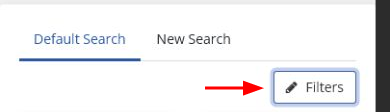
Search near a different location
- Open New Search or Filters.
- Under Location near, select Custom.
- Enter a town or city and choose the matching suggestion.
- Select the distance around that location.
- Select Search.
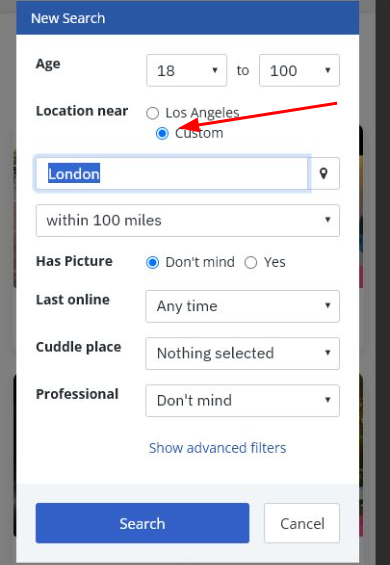
There is no country-only switch. Results are based on the place and radius you choose, not national borders. For example, to see Canadian results instead of US results, enter a Canadian town or city and choose a suitable distance. The same approach works for the UK or any other location. If the area is still too broad, lower the distance or try another town or city.
Saved searches
- Running your first custom search automatically changes the first tab from Default Search to My Search.
- Select Saved to give My Search a clearer short name.
- Additional saved searches appear as their own tabs next to New Search.
- You can keep up to three saved searches.