How do I manage or delete my profile photos?
You can manage and delete your photos from Edit photos.
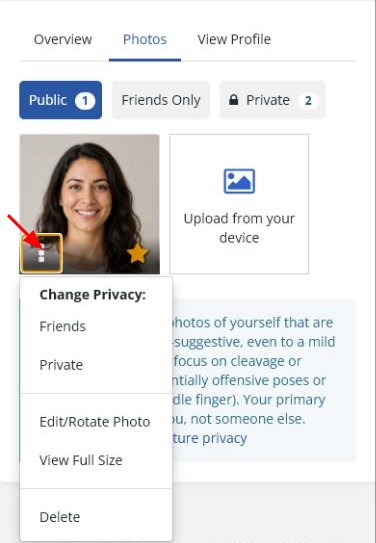
The page is organized into Public, Friends Only, and Private tabs, so you can see at a glance who can view each photo.
To change or remove a single photo:
- Open Edit photos.
- Find the photo you want to change.
- Open the three-dot menu on that photo.
- Choose a privacy change, Edit/Rotate Photo, View Full Size, or Delete.
When you have enough photos, the page also supports bulk selection, so you can change the privacy of several photos or delete them together.
To set a new primary photo, use the star icon on any public photo.
One thing to keep in mind: deleting a photo from your profile does not necessarily remove a copy you previously sent in a conversation. For more on this, see Why are old photos showing in the upload feature?.